

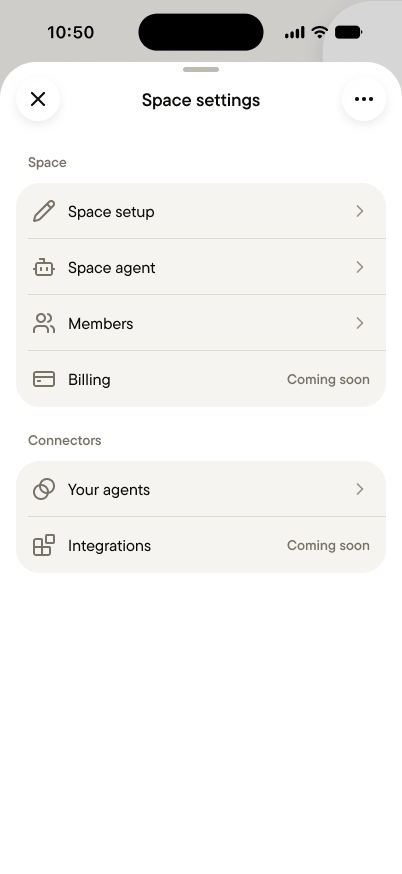
Space setup
The team space’s identity: its profile image, name, and description. Renaming is easy. If the space outgrows what you called it on day one, change it here and every member sees the update.Space agent
Admins shape the space agent here:- Its name. Give it a name your team will recognize.
- Its instructions. Standing guidance on tone, what the team cares about, and how to answer. Instructions shape the agent’s voice and priorities, but never its boundaries. No instruction makes it see private feeds, Personal spaces, or anything the person asking couldn’t see.
- The space’s timezone.
Members
Admins manage who’s in the team space here.- Invite. Copy the invite link, share it, or add someone by email, just as when you created the space.
- Roles. Everyone is an admin or a member. Admins manage settings, members, and invitations, and can make any member an admin. A team space can have more than one admin. The person who created it starts as an admin, with no extra powers beyond that.
- Remove. Admins can remove a member. Removing someone works the same way as leaving (see below).
Billing
Coming soon.Your agents
Connect Claude Code, Codex, Cursor, or another agent you run to this space. Any member can connect their own agent. It acts as you and sees what you see in this space, and nothing more. See Connect your agent.Integrations
Coming soon: connecting the team space to tools like Slack, Notion, and HubSpot. Integrations send the team’s data out of Gobi, so in a team space only admins will be able to set them up.When someone leaves
Gobi follows one rule when someone leaves a team space: what the team could see stays, and what only they could see goes with them.- Stays with the space: their posts, their replies, and the Summaries of their notes, still under their name.
- Leaves with them: the transcripts, audio, side notes, and attachments of their notes.
- Private feeds they created stay with the space, and the admins take them over. If they were the last member of a private feed, it’s deleted.
The danger zone
Two choices are in the ⋯ menu at the top right of Space settings, marked in red because they mean it:- Leave space. Any member can leave. You lose access to the space, its feeds, and its messages, and the rule above applies to what you captured there.
- Delete space. Admins only, and permanent. Deleting a team space removes it, and everything captured in it, for every member. Members’ Personal spaces aren’t affected.