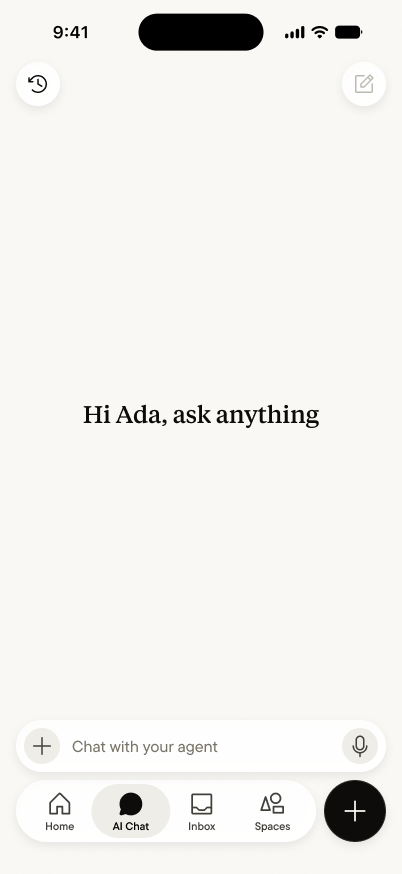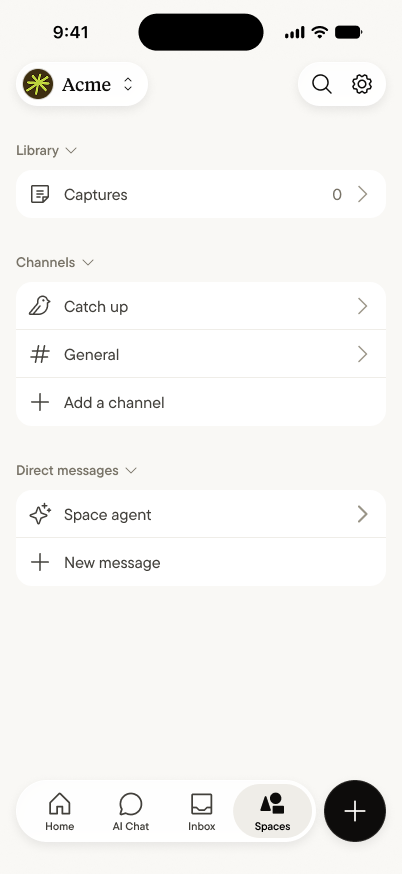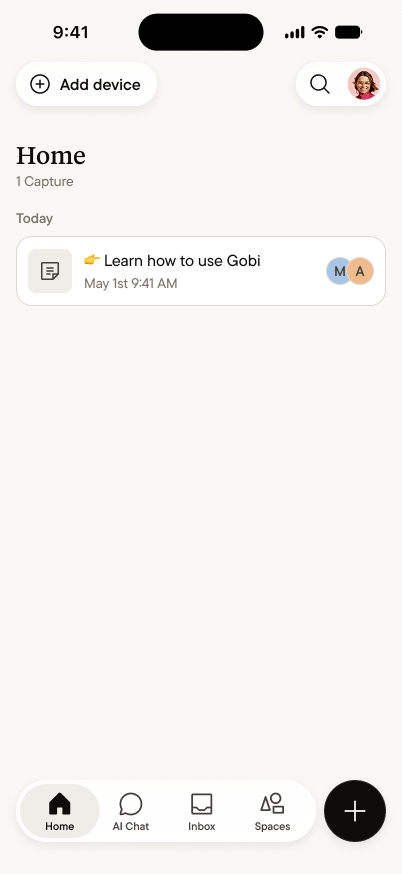
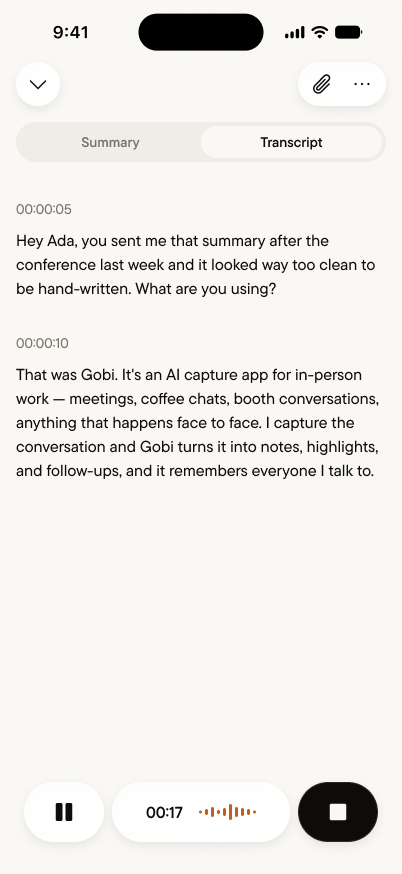
The app is built around one loop: capture what happens, let it build up in a feed, and put it to work with your agent and your team.

Spaces

The space switcher, with a Personal space at the top and a team space below it
Tap the avatar at the top left to open the space switcher. Your Personal space is always first. It’s yours alone, with no members and no invites. Below it are your team spaces, each showing how many members it has. Tap a space to switch to it, or tap New space to create one. Space settings and Get help are at the bottom. Switching spaces switches everything: the feeds, the agent, and the conversations.

Home and feeds

The Captures feed in a Personal space, with a note from a lease walkthrough and a post from the personal agent
Home shows the feed you’re in, newest first and grouped by day. Posts from people and from the agent sit in the same stream. Under each one are a heart, replies, and Ask, which brings that post to your agent. Search, notifications, and feed settings are at the top right.
The Feeds sheet in a team space, listing its feeds with a New feed button
Tap the feed name to open the Feeds sheet. From there you can switch feeds, or tap New feed to make one. Your Personal space starts with Captures. A lock means the feed is private, so only invited members can see it. See Feeds.

Capture

The + menu, with Start voice note and Post something
Tap + to capture into the feed you’re in. You can Start voice note or Post something. A voice note captures a conversation as it happens. Add side notes while it runs, pause when you need to, and tap End when you’re done.
The New post screen, with an optional title and buttons for photos, camera, scan, and files
Post something is for everything else: a few lines of text, a photo from your library or the camera, a scanned document, or a file.

Notes

A finished note open on its Summary, with Ask anything at the bottom
A voice note becomes a note, and it opens on the Summary: the one thing that mattered, where things stand, and what’s worth noting. From the same screen you can switch to the full transcript, play the audio, see who was there, and add attachments. Ask anything at the bottom asks your agent about this note. To send the note to someone, share it by link from the top of the screen. In a team space, other members see a note’s Summary. The transcript, audio, side notes, and attachments stay with you.

Chat and Messages

Chat with the personal agent, answering a question about a pricing offer and drafting a reply
In your Personal space, Chat is your conversation with your personal agent. Ask it anything about what you’ve captured there, like “What did Marco offer on pricing?” or “What did I promise this week?” You can type or talk.
Messages in a team space, with the space agent at the top and conversations with teammates below
In a team space, that tab is Messages. Talk to the space agent at the top, or message teammates one-on-one or in a group. The space agent answers from the space’s public feeds. It doesn’t read your messages.

Notifications

The bell shows what happened in the space you’re in: new posts, replies, mentions from teammates and the agent, and notes that are ready. Each space keeps its own notifications, and a badge in the space switcher tells you when another space has something new.

The loop, in practice

Capture a conversation, read the note, and ask your agent when you need it back. In a team space, everyone captures into the same feeds, so nobody has to write a recap. Start with the Quick start.